Setup guide
Everything from a fresh download to a fully AFK NMZ session. Read this once — the settings below make or break detection.
Folder layout
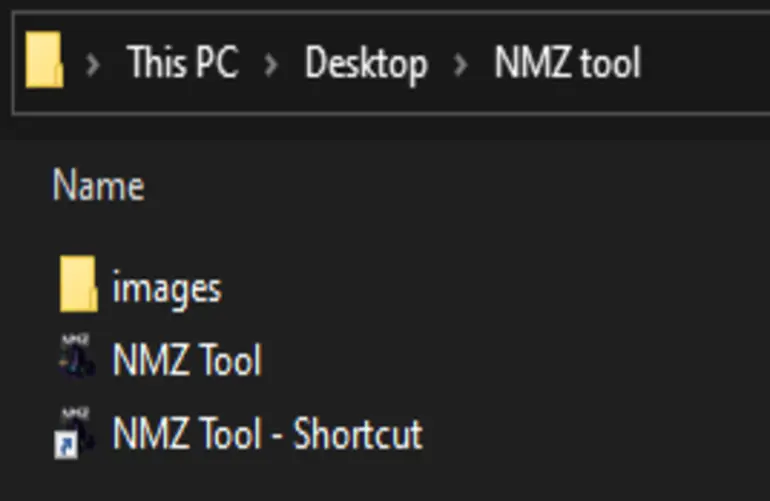
In the download folder you'll see two things: NMZ Tool.exe and an images folder. Both must live in the same directory — the tool uses the images to detect rock cake, absorptions, HP orb, and chat messages inside the OSRS client window.
Create a Shortcut to NMZ Tool.exe and drag it to your Desktop for easy access — don't move the exe itself out of the folder.
Check images before first launch
Before starting the tool for the first time, click check images on the login window. It confirms every image file the tool needs is present and correctly named.
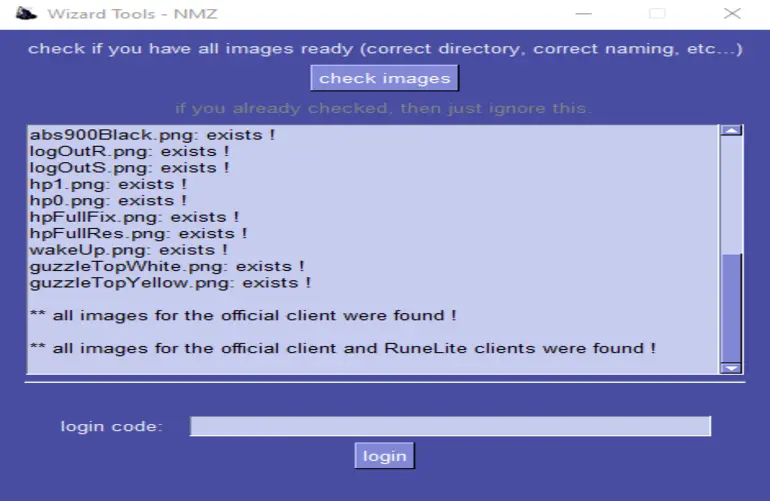
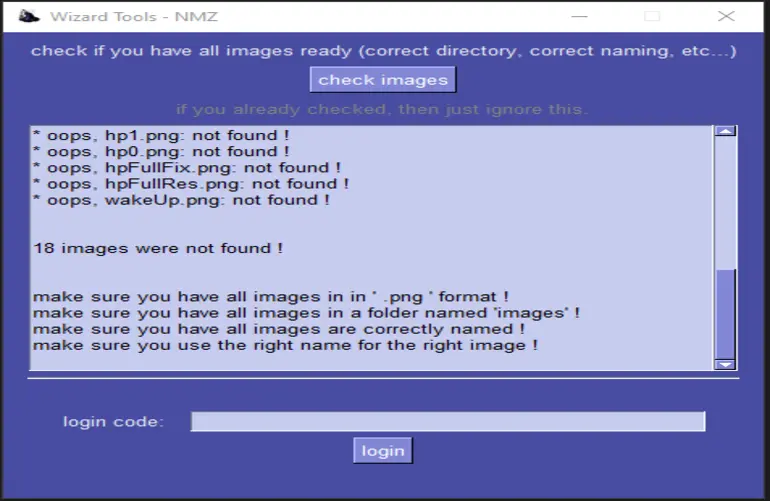
: exists ! and the last line reads all images for the official client and RuneLite clients were found !
images (lowercase), sits next to NMZ Tool.exe, and every file is a .png. Don't rename any of the files — the tool looks them up by exact name.
1. Windows resolution & scaling
The tool works on any resolution but Windows scaling must be 100%. The images used for object detection were captured at 100% scaling — anything else and inventory items won't be found.
How to check & change it
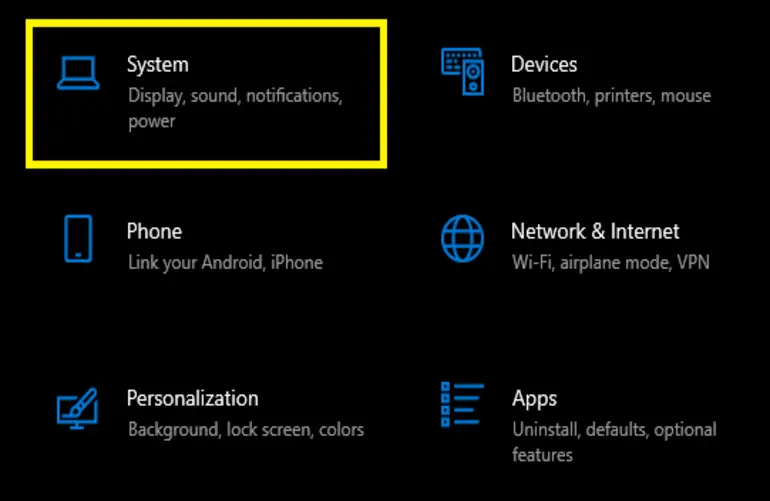
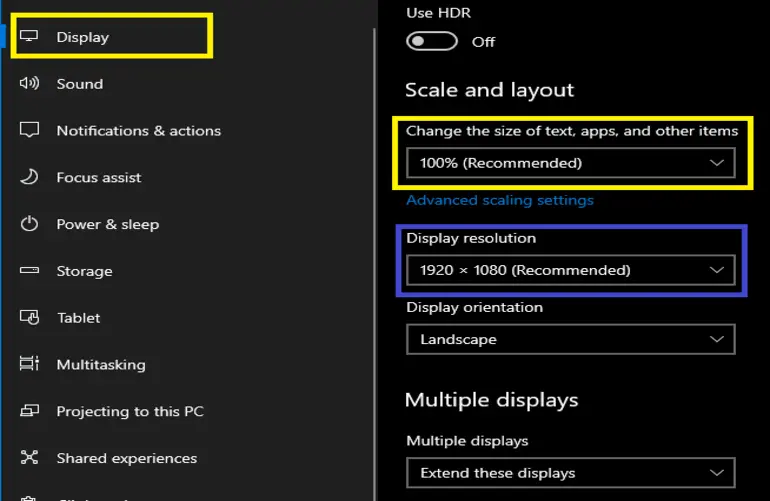
- Open Windows Settings → System → Display.
- Under Scale and layout, set Change the size of text, apps, and other items to 100% (Recommended).
- Set Display resolution to 1920 × 1080 for the fastest detection. Higher resolutions still work but slow down image recognition.
2. In-game brightness
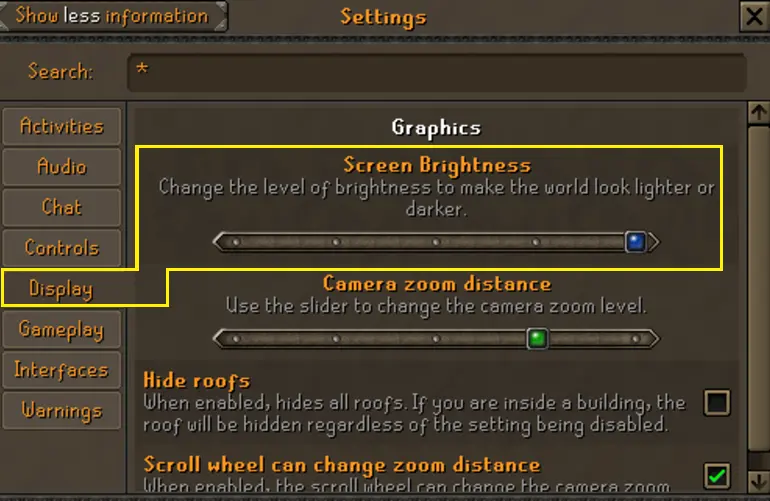
OSRS in-game brightness must be at the highest level. The reference images the tool uses were taken at max brightness — anything lower and inventory items look different enough that detection fails.
Open Settings → Display → Screen Brightness and slide it all the way to the right.
3. Resizable mode chat box & side panel
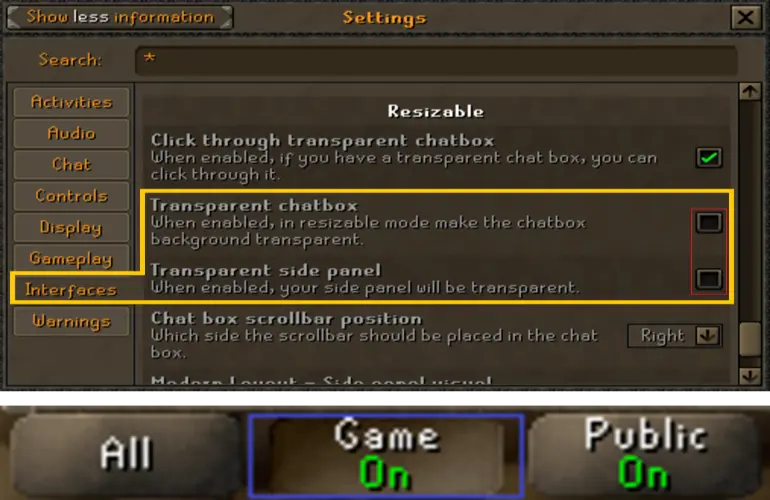
If you play in resizable mode, turn OFF transparency for both the chat box and side panel — otherwise inventory items and chat messages sit on a see-through background that image detection can't lock onto.
Open Settings → Interfaces → Resizable and uncheck:
- Transparent chatbox
- Transparent side panel
Keep the chat box open
The tool uses two methods to detect when your character is out of NMZ: full-HP detection, and reading the "you wake up feeling refreshed" chat message. Keep your chat visible — don't minimize it. Game chat: ON is recommended.

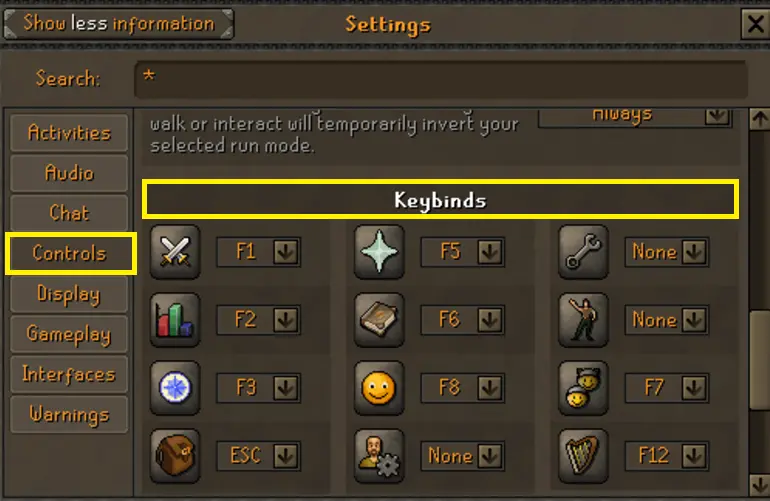
4. Remove F9 / F10 / F11 from OSRS keybinds
The tool listens on F9 (pause), F10 (1HP stop), and F11 (stop program). If OSRS has any of those bound to a tab switcher, pressing them will swap your tab — and the tool will terminate when it checks for rock cake in the wrong tab.
Open Settings → Controls → Keybinds. Set F9, F10, and F11 to None.
5. RuneLite — Guzzle rock cake on top
When you first start the tool with a RuneLite client, it does a one-time check to see whether Guzzle is the left-click option on your rock cake. If it is, every future rock cake use is a direct left-click (faster and quieter). If not, it falls back to right-click → Guzzle every time.
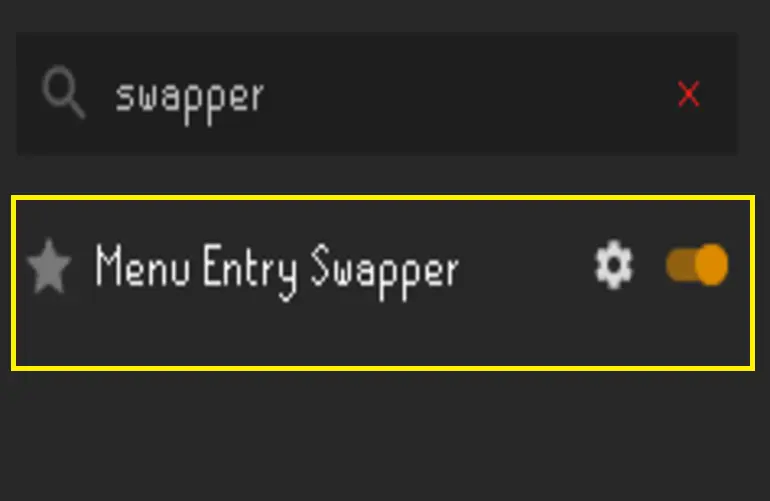
Enable Menu Entry Swapper
In RuneLite plugin search, type swapper and turn on Menu Entry Swapper.
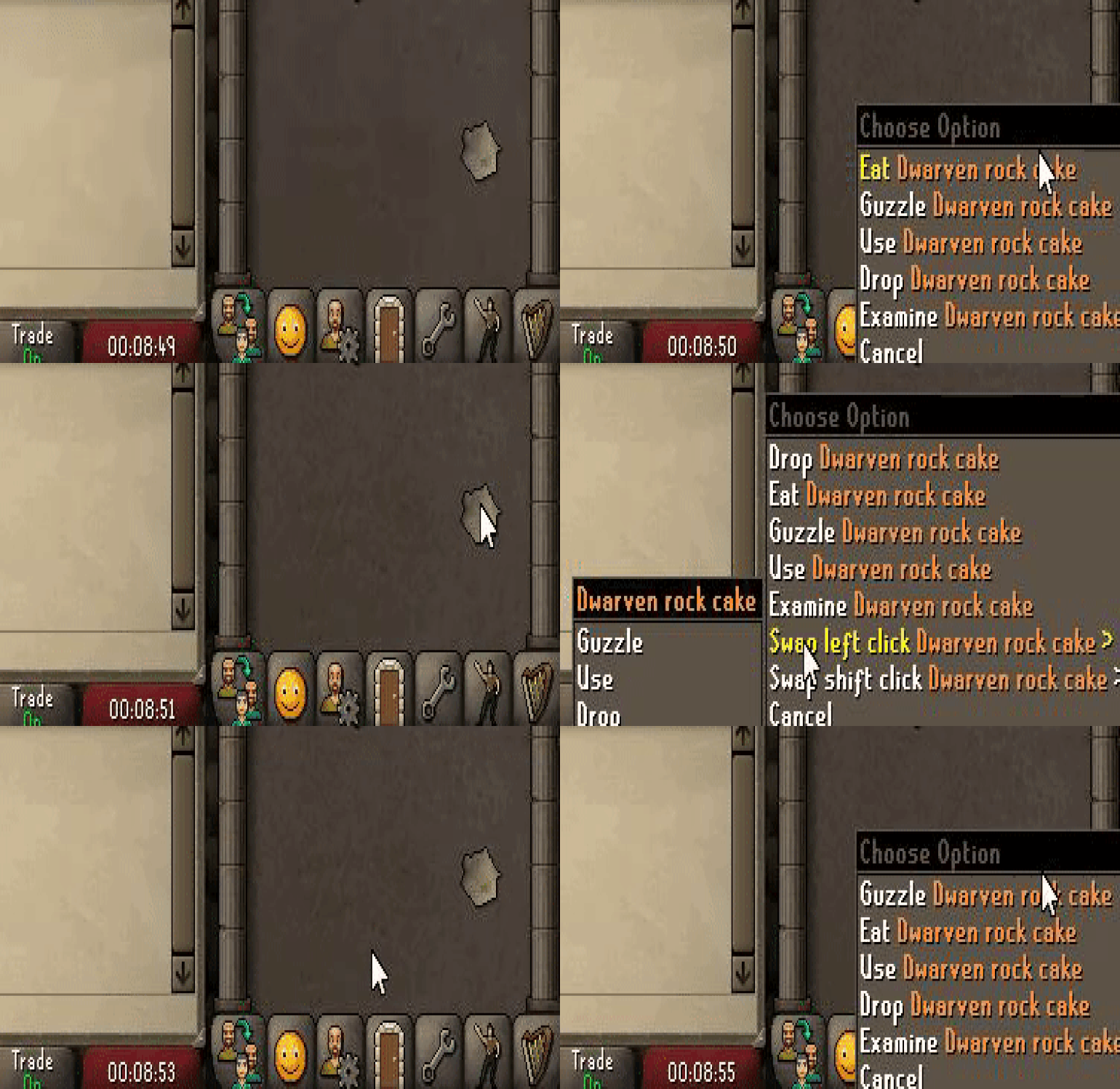
Swap Guzzle to left-click
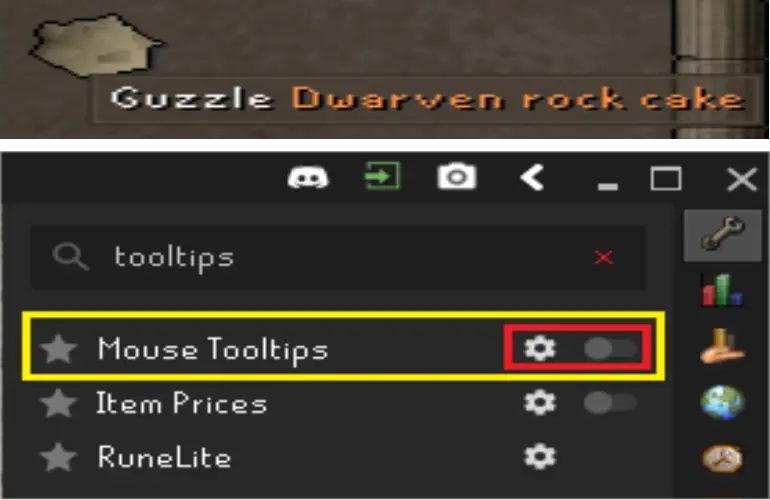
In your inventory, hold Shift and right-click the Dwarven rock cake → Swap left click → choose Guzzle. The default left-click option for your rock cake is now Guzzle.
6. RuneLite — client window title
The tool finds RuneLite clients by matching the window title. If RuneLite appends your in-game display name to the title, it becomes harder to match cleanly across multiple accounts.
In RuneLite plugin search, type runelite and click the gear on the RuneLite plugin. Uncheck "Show display name in title".

7. RuneLite — overlays & tooltips
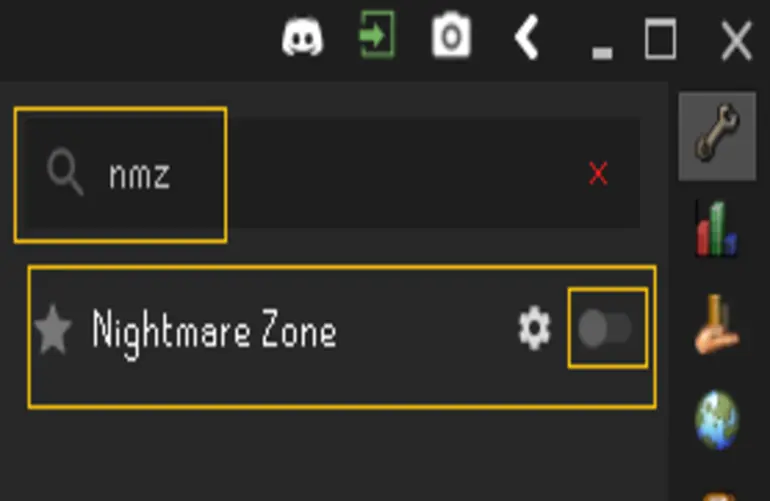
Turn off the NMZ plugin
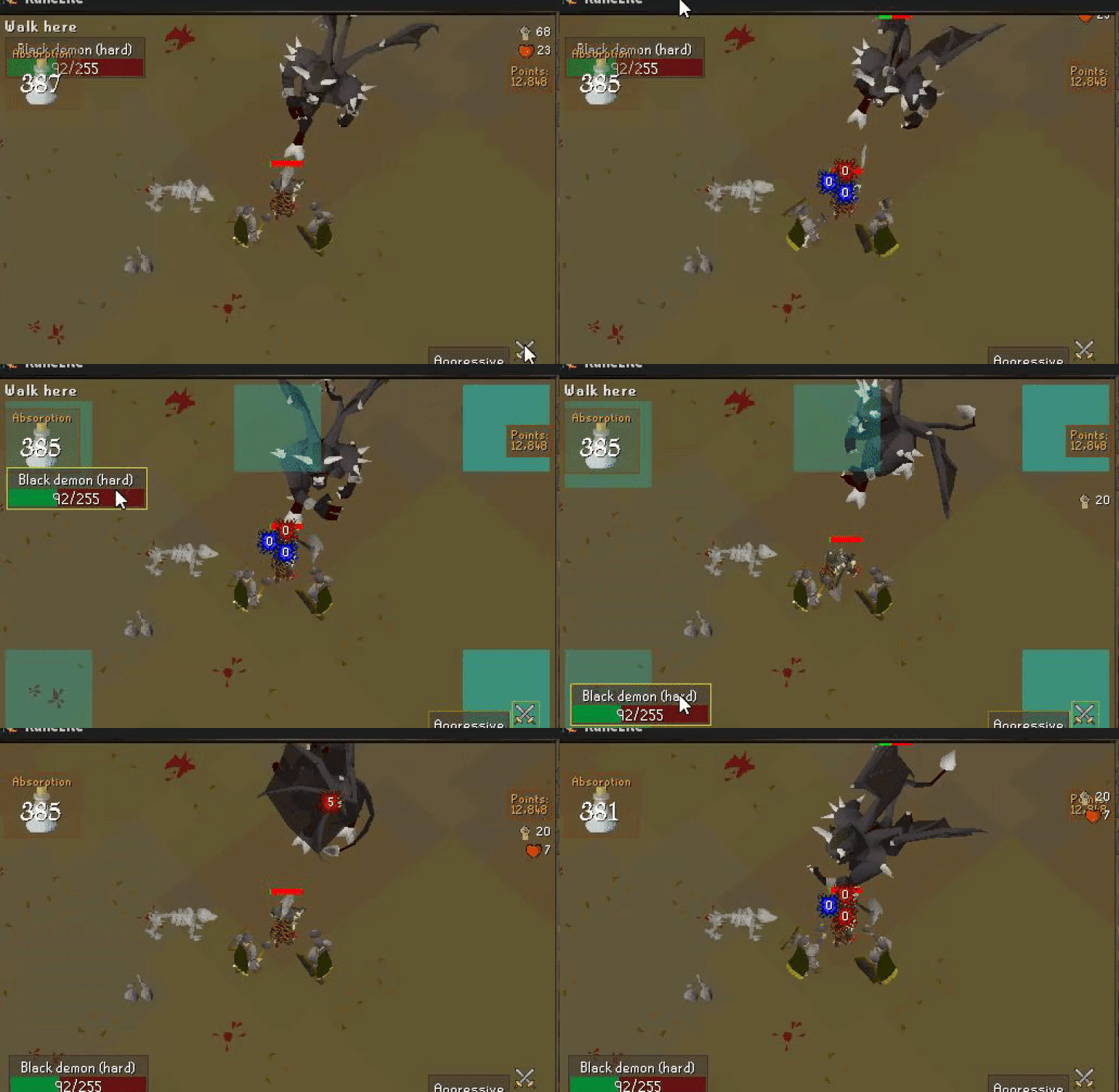
RuneLite's built-in NMZ overlays draw on top of the absorption points counter. In plugin search, type nmz and turn the whole plugin OFF.
Turn off Mouse Tooltips
Mouse Tooltips is a plugin that shows a text bubble under your cursor. If your cursor sits on an absorption potion when the tool tries to find the rock cake, the tooltip covers it → detection fails → the tool terminates. In plugin search, type tooltips and turn Mouse Tooltips OFF.
How the tool works
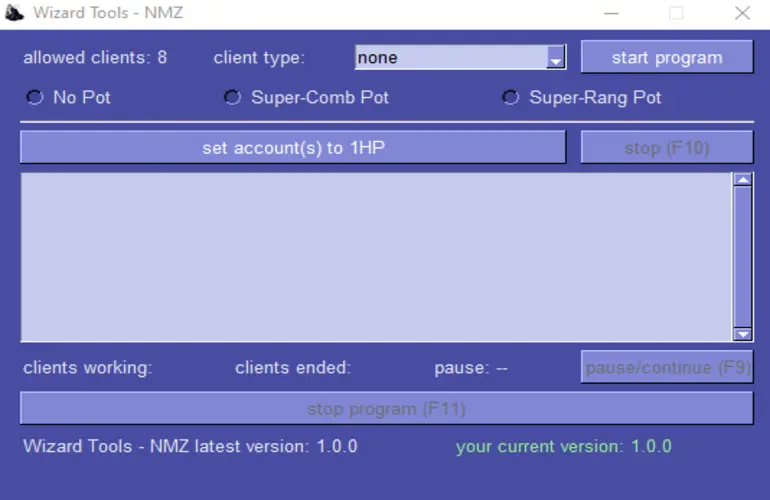
- Choose a client — official OSRS client or RuneLite.
- Set account(s) to 1HP — hit this before starting the main program. It rock-cakes / locator-orbs every attached account down to 1 HP. If you enter NMZ with full HP, the tool sees full HP and assumes you're already out of NMZ and stops.
- Choose a potion type — No Pot, Super-Comb Pot, or Super-Rang Pot. Overload isn't available (see note below).
- Start program — begins the main loop. Start with low HP or the tool will terminate on first check.
Recommended setups & XP rates
| Build | Setup | Expected XP/h | AFK |
|---|---|---|---|
| 1 def pure — melee | Full inventory of absorptions | 40k – 60k+ (weapon & STR dependent) | ~1 hour |
| 1 def pure — ranged | 5× super ranging potion, blowpipe | 70k – 80k | ~1 hour |
| Zerk / med / main (~70+ def) | Absorptions + Super Combat | — | 4 – 6 hours |
| Higher def (~80–85+) | Absorptions + Super Combat | — | Full 6 hours |
Overload
Not currently available. It's problematic on 1-def pures and multi-account setups — your absorption points bleed off very quickly, meaning less NMZ time and less XP. Because the XP difference between Super Combat and Overload is minimal, Super Combat wins on total AFK yield.
Imbued Heart
Planned for a future version if there's demand for NMZ magic training.
Hotkeys
Work anywhere on your PC — the tool window doesn't need focus.
Troubleshooting
"No OSRS clients found"
- Is the OSRS client actually visible (not minimized to the tray)?
- Does the window title start with "RuneLite" or "Old School RuneScape"?
- Correct client type chosen in the dropdown?
- For RuneLite: is Show display name in title unticked? (Step 6 above.)
Tool stops immediately after Start
- You started with full HP → get to 1HP first using the Set account(s) to 1HP button.
- Your rock cake wasn't found → check the inventory image isn't covered by a tooltip or overlay (Step 7).
- Wrong screen scaling → close everything, set Windows to 100% scaling, relaunch.
Windows Defender / SmartScreen warning
The exe is unsigned. Click More info → Run anyway. If Defender quarantines it, add the folder to Defender exclusions.
"invalid login code"
Your key is wrong, expired, banned, or bound to a different PC (if HWID lock is on). Contact the operator with the exact error and the code you were issued.